How to Register on the Employee Kiosk with tmsPay
Summary
This document addresses work instructions for how to register on the employee kiosk with tmsPay.
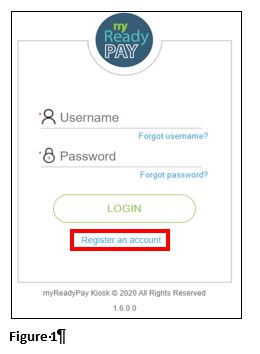
1. You will receive an e-mail inviting you to register in the employee kiosk. If you do not receive an email invitation, please be sure to check your spam folders. Click on the link in the e-mail.
2. Once you click on the link in the e-mail please Register an account (Figure 1).
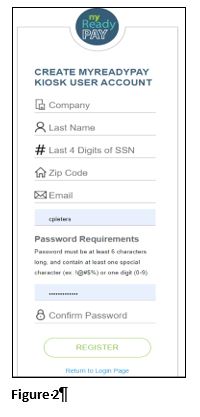
3. Fill out the information on the registration screen. (Please note that your information must match what your employer has on file for you.) Click on the registration button in the bottom left when finished (Figure 2).
4. After registering, you will be asked for your e-mail address; enter your e-mail address and clicking send. You will receive an e-mail from support@pay-net.net; if you do not see it in your inbox please check your spam folders. Click on the link in the e-mail to verify your e-mail address and after clicking the link in the e-mail, you will be brought back to the log in page.
To Receive Electronic Check Stubs in the Employee Kiosk Instead of Printed Check Stubs
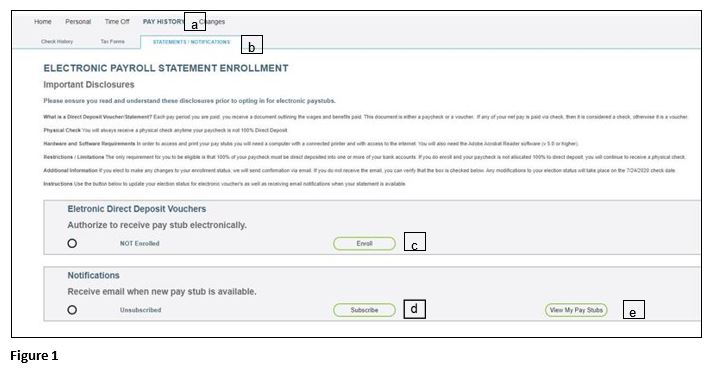
1. Once you log into Kiosk, please follow the instructions below to enroll in the electronic check stub option (Figure 1).
a. Select Pay History
b. Select Statements/Notifications
c. Select the Click to Enroll tab
d. Select Click to Subscribe to receive e-mail notifications that your check stub is ready to view.
e. Select the View My Paystubs to view you pay stubs