Assigning Pickup Shifts to Employees in Visual Scheduling
Summary
This document addresses work instructions for how supervisors assign pickup shifts to employees.
Assigning Pickup Shifts
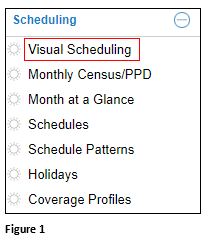
1. From the Scheduling menu, select Visual Scheduling (Figure 1).
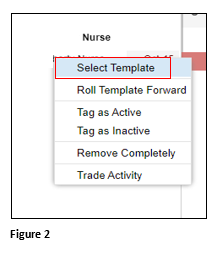
2. Click on the appropriate template and click Select Template (Figure 2).
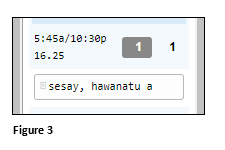
3. Assign the employee to the shift they are picking up (Figure 3).
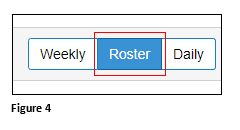
4. Go to the Roster Schedule (Figure 4).
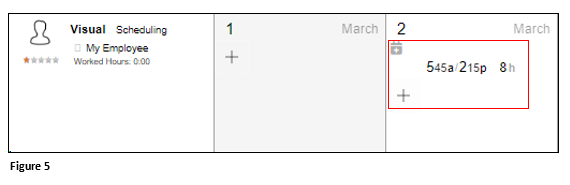
5. Click on the schedule added (Figure 5).
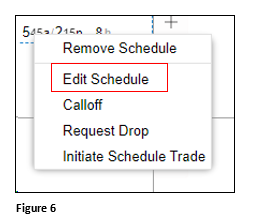
6. From the menu, select Edit Schedule (Figure 6).
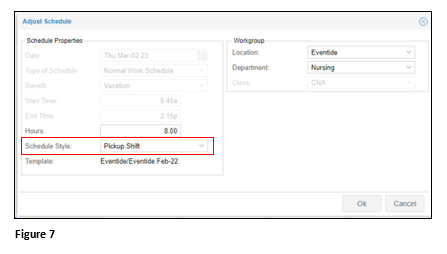
7. On Schedule Style, choose Pickup Shift and click OK (Figure 7).
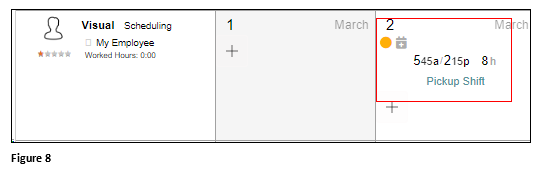
8. The date will now indicate Pickup Shift (Figure 8).