How to Reset Your Password in MyAttendanceManager (MAM)
Summary
This document outlines how to reset your password in MyAttendanceManager (MAM).
Resetting the Password
If an employee or manager forgets their password they may reset it.
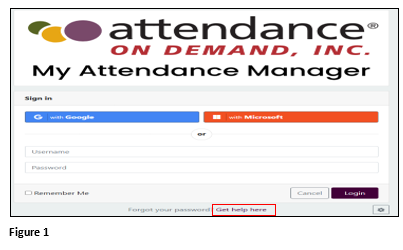
1. From the sign in screen, next to Forgot your password?, click Get help here (Figure 1).
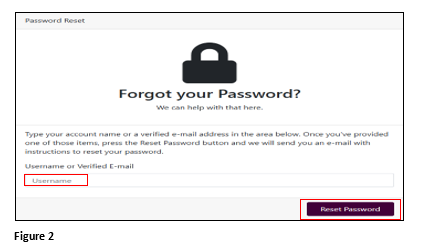
2. From the Forgot your Password? screen, enter your Username or Verified E-mail address and click Reset Password (Figure 2).
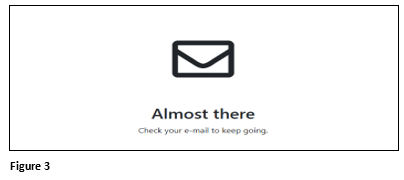
3. A message will display reminding the user to check their email (Figure 3).
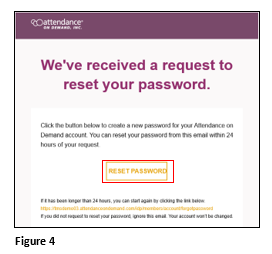
4. The user will receive an email instructing them to click the Reset Password button. Click the Reset Password button (Figure 4).
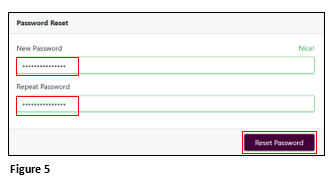
5. The user will enter their New Password and repeat it. Click Reset Password (Figure 5).
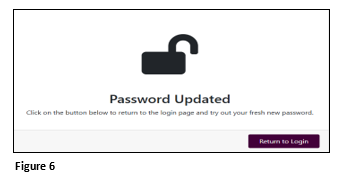
6. Upon successfully creating a new password, the user will see a Password Updated message (Figure 6).
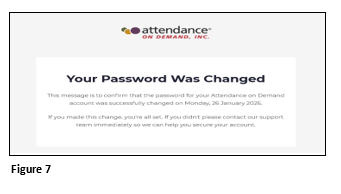
7. The user will also receive an email alerting them to the successful password change (Figure 7).