How to Manually Send an Email Invitation to a User in My Attendance Manager (MAM)
Summary
This document outlines how to manually send a MyAttendanceManager (MAM) invitation email to user accounts.
When a new user (manager) account is created, AOD will automatically send an email inviting them to create a password. The process below can be used to resend the invitation if it has elapsed or if the original email was not received.
Resending User Account Invite Emails
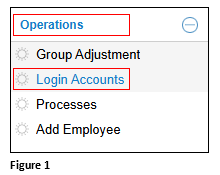
1. From the AOD menu, click Operations and Login Accounts (Figure 1).
2. Click on the pencil in front of the user’s name (Figure 2).

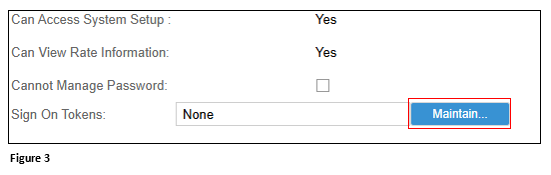
3. In Sign On Tokens, click Maintain (Figure 3).
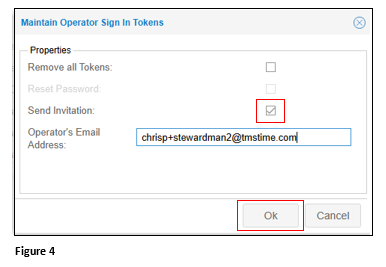
4. Check the Send Invitation box. Verify the email and click OK (Figure 4).
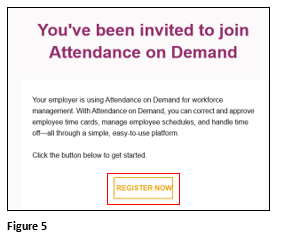
5. The user will receive an email from AOD inviting them to join. Click the Register Now button to create a password (Figure 5).