How to Set PIN Entry to Bypass Biometric on the GT4
Summary
This document outlines how to set PIN entry on the GT4 timeclock, bypassing the biometric fingerprint scan for punching.
If an employee has difficulty enrolling their fingerprint or is under 18, the GT4 biometric timeclock can be configured to allow punching in and out with their badge number via PIN entry.
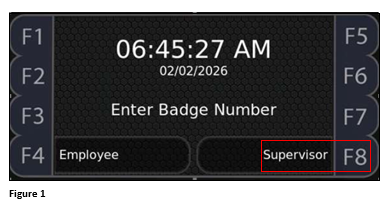
1. From the home screen, select F8, Supervisor (Figure 1).
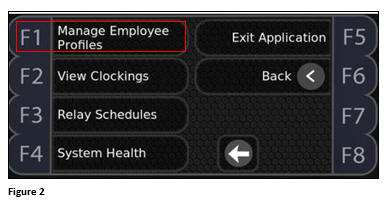
2. Select F1, Manage Employee Profiles (Figure 2).
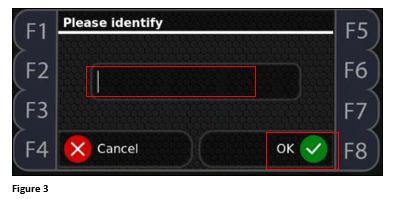
3. Enter the Supervisor PIN (1905). Hit OK. Repeat this process (Figure 3).
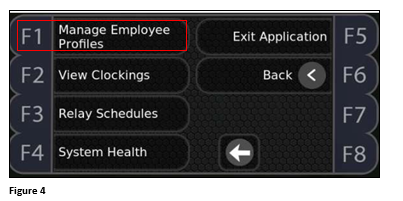
4. Select F1 Manage Employee Profiles (Figure 4).
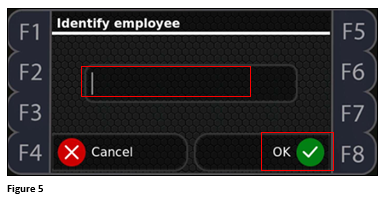
5. Enter the employee’s badge number and press OK (Figure 5).
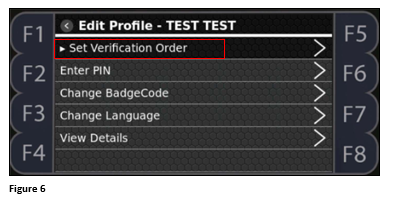
6. The employee’s name will be display at the top. Select Set Verification Order (Figure 6).
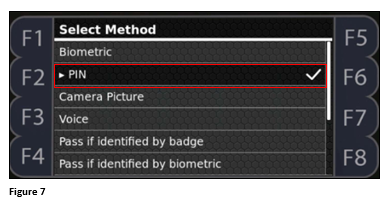
7. Change the selection to PIN (Figure 7).
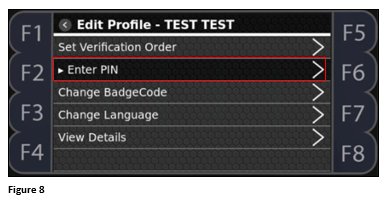
8. Select Enter PIN (Figure 8).
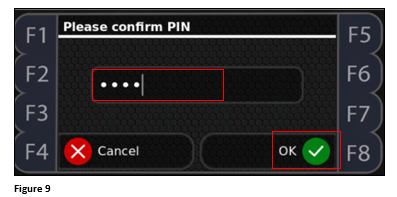
9. Enter the new PIN. Repeat to confirm and click OK (Figure 9).
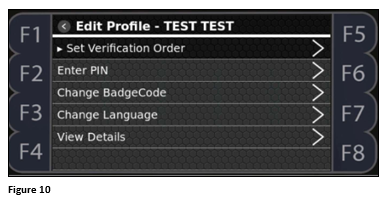
10. From the Edit Profile screen, X out until back on the main menu (Figure 10).
11. From the Main Menu, the employee can test their new PIN by entering their badge number. The clock should prompt for the PIN instead of a fingerprint.