MyAttendanceManager Employee Mobile Onboarding Experience (MAM Mobile)
Summary
This document outlines the mobile MyAttendanceManager (MAM) employee onboarding experience.
When an employee has been added to the time and attendance software, they will be sent an email allowing them to start the MAM registration process.
Mobile MAM Registration
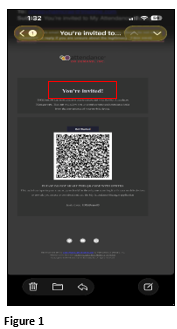
1. The employee will receive a You’re Invited email from Attendance On Demand. Tap Get Started (Figure 1).
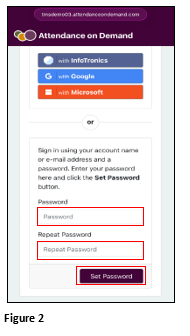
2. The employee will be directed to a Registration page. Sign in with personal Google or Microsoft credentials or create a password. Tap Set Password (Figure 2).
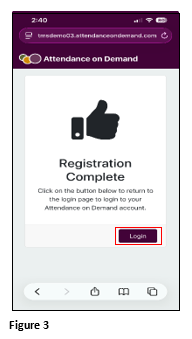
3. Upon successful creation of a password, tap Login (Figure 3).
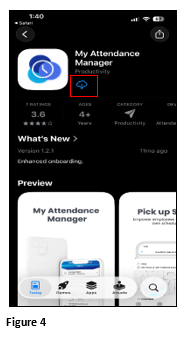
4. The employee will be directed to their App Store. Download the MyAttendance Manager App and Open (Figure 4).
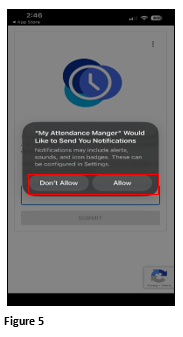
5. AOD will ask to send notifications, either Allow or Don’t Allow (Figure 5).
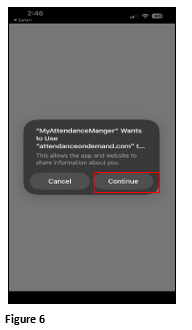
6. AOD will ask to use ‘Attendanceondemand.com’. The employee must click Continue (Figure 6). If canceled, the app will not work.
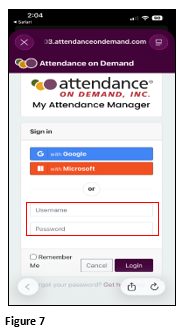
7. From the Sign In page, enter the user name (email address) and password (Figure 7).
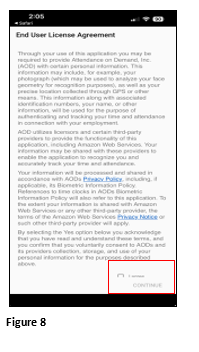
8. On the End User Agreement page, check I Agree and tap Continue (Figure 8).
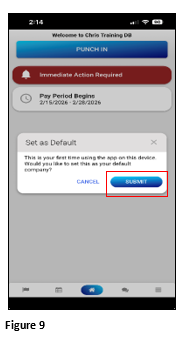
9. The MyAttendanceManager home page will open. On the Set as Default box, click Submit and the App has now been set up (Figure 9).