How to Punch In and Out Using MyAttendanceManager Mobile (MAM Mobile)
Summary
This document outlines how punch in and out using MyAttendanceManager Mobile (MAM Mobile)
How to Punch using MAM Mobile
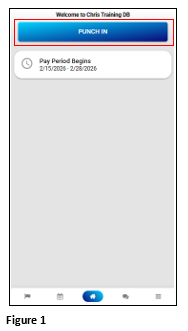
1. Once logged into the MyAttendanceManager App, from the home page, tap Punch In (Figure 1).
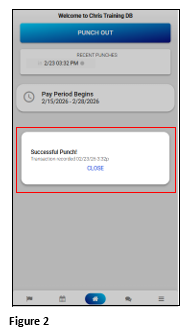
2. A Successful Punch notification tile will appear on the home page. Either tap Close, or it will remove itself (Figure 2).
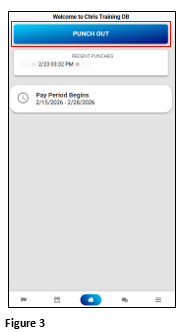
3. To punch out, click the Punch Out button (Figure 3).
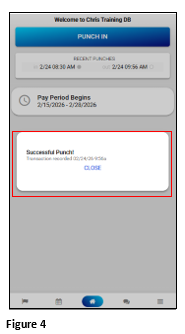
4. A Successful Punch notification tile will appear on the home page. Either tap Close, or it will remove itself (Figure 4).
5. All successful transactions will be added to the timecard.