How to Transfer in MyAttendanceManager Mobile (MAM Mobile)
Summary
This document addresses work instructions on how to transfer workgroups in MyAttendanceManager Mobile (MAM).
How to Transfer
A transfer is a temporary authorized workgroup change that employees will use to track and properly allocate their hours. This is performed after the initial punch in for the day.
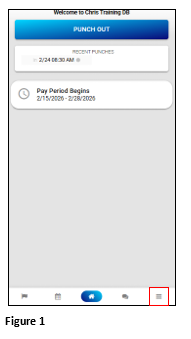
1. Once logged into the MyAttendanceManager App and after punching in, tap the Hamburger menu (Figure 1).
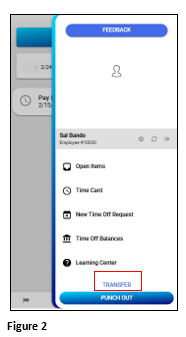
2. Tap Transfer (Figure 2).
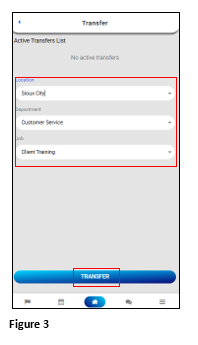
3. Use the drop-down arrows to select the temporary work group(s). The number of workgroups and the options in the drop-down menus will vary by organization. Tap Transfer (Figure 3).
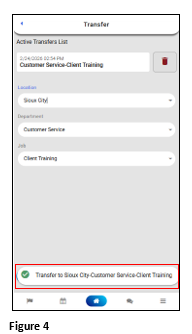
4. The user will see a Transfer Accepted message (Figure 4).
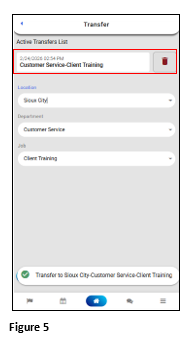
5. The Transfer page will show a list of Active Transfers (Figure 5).
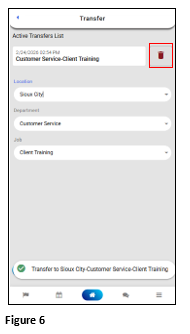
6. Tap the Trash Can icon to remove a transfer (Figure 6).
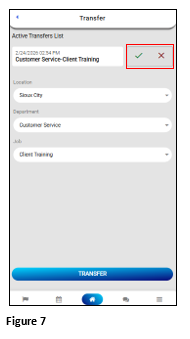
7. Tap the checkmark to accept the transfer cancel, click the X to stop the transfer cancel (Figure 7).
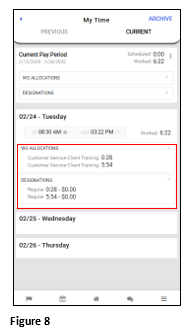
8. The user’s transfers and hour designations will display on their timecard (Figure 8).