How Employees Approve Timecards in MyAttendanceManager Mobile (MAM Mobile)
Summary
This document addresses work instructions on how employees approve their timecards in MyAttendanceManager (MAM) Mobile.
Some organizations ask their employees to approve their timecard at some point during the end of a pay period.
Approving the Timecard in MAM Mobile
1. Log into MyAttendance Manager Mobile.
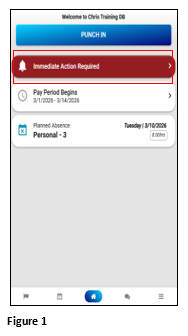
2. On the Home page, tap the Immediate Action Required tile (Figure 1).
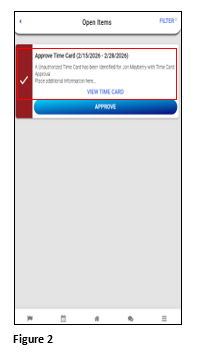
3. Tap either View Time Card or Approve. It’s good practice to review the timecard prior to the approval but it is not required (Figure 2).
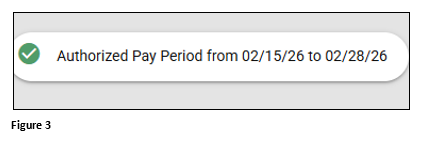
4. Once Approve is clicked, the notification will disappear and a message indicating the approval will display at the bottom of the screen (Figure 3).