How to Request Time Off in MyAttendanceManager (MAM)
Summary
This document addresses work instructions on how employees can request partial, single and multiple days off in MyAttendanceManager (MAM).
Requesting a Planned Absence
1. Log into MyAttendance Manager.
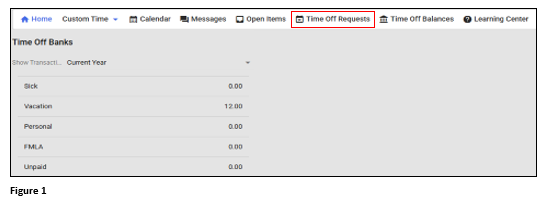
2. From the Home page, select the Time Off Requests menu (Figure 1).
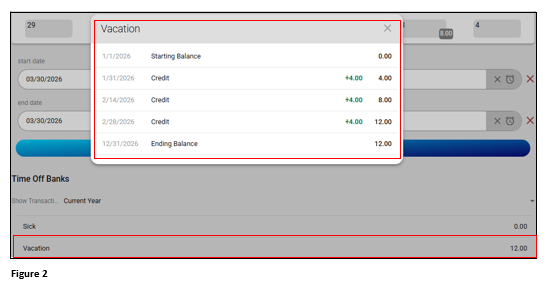
3. Prior to requesting the time off, the user will see their Time Off Banks; click each one individually to see a ledger with all up-to-date activity. Click the X to close the benefit ledger (Figure 2).
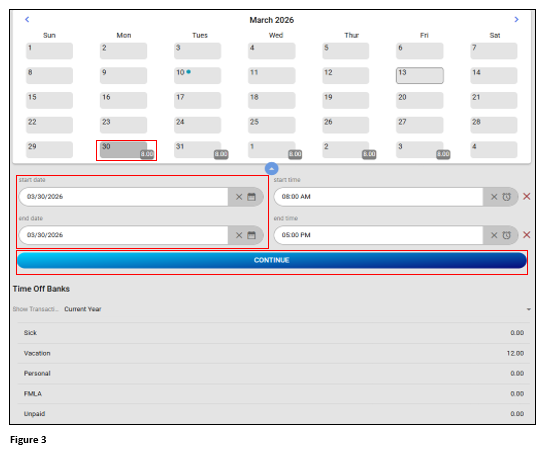
4. Click the day on the Calendar; if the user has schedules assigned, they will also show on the calendar day. The Start Date and End Date will populate with the day requested which will be used for a partial day or single day request. if the request is more than a day, click the last day of the planned absence and the End Date will display it. The Start Time and End Time, despite displaying, will not be used. Click Continue (Figure 3).
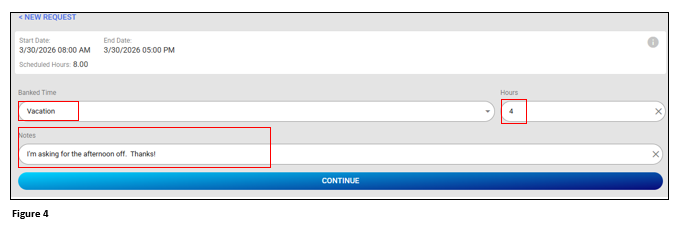
5. Select the appropriate Banked Time bucket, the number of hours requested and any notes (optional). Click Continue (Figure 4).
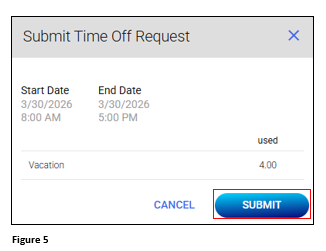
6. Verify the request information is correct and click Submit (Figure 5).
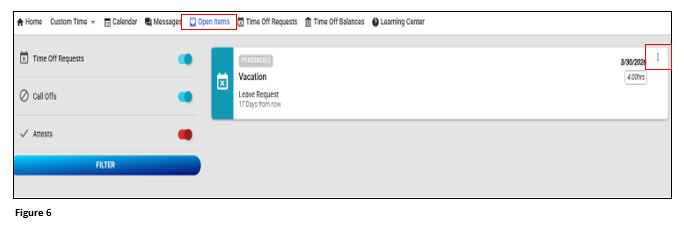
7. The Pending Leave Request will be displayed on the Open Items page until it has either been approved or denied. The User may withdraw the pending request by clicking on the three dots (Figure 6).
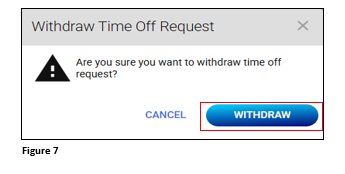
8. Click Withdraw and the pending request is canceled (Figure 7).
9. Once the request has been either approved or denied, the user may receive an email notification. If approved, the planned time off absence will be placed on the Calendar menu in the form of a blue dot. The planned absence will also be added to the employees schedule (Figure 8).
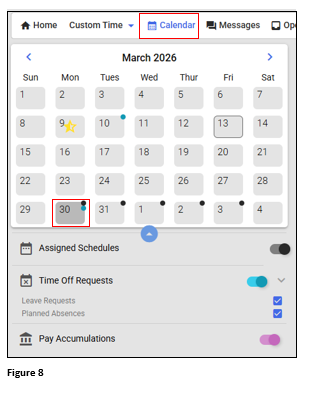
10. Once a leave request has been approved, the user may not cancel it. If the user no longer needs the planned absence, they may submit a request to their manager for cancelation. Click the absence blue dot on the calendar and on the Approved banner, click the 3 dots (Figure 9).
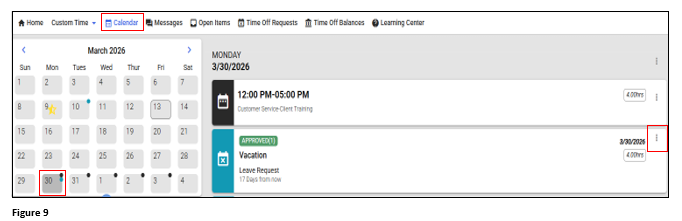
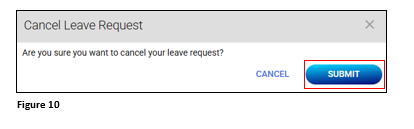
11. From the 3 dots, select Cancel Leave Request and click Submit where the request will now be sent (Figure 10).
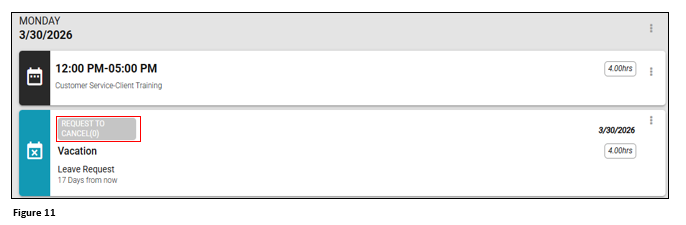
12. The approved leave will show a Request to Cancel note (Figure 11).
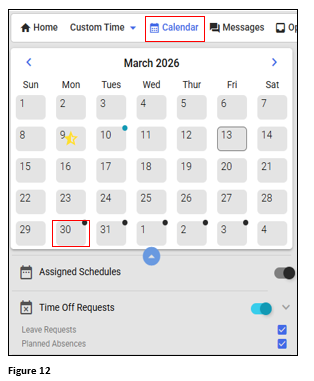
13. If the manager approves the cancelation, the user may receive an email. The approved leave will now be gone from the calendar and schedule (Figure 12).