How to Use Allocation Sheets in MyAttendanceManager (MAM)
Summary
This document outlines how employees can use allocation sheets to track and log their hours in My Attendance Manager (MAM).
At the end of their shift, some organizations will ask their employees to assign their hours from the day to the proper workgroups based on their assigned project or the tasks they performed. Allocation sheets help the organization properly organize and maintain accurate.
Using Allocation Sheets
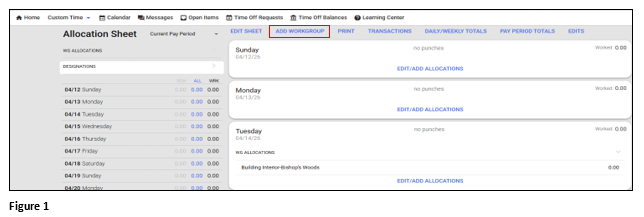
1. After logging into My Attendance Manager (MAM) and if a new workgroup needs to be added to the transfer list, click Add Workgroup (Figure 1). If all the Workgroups have been added, skip to Step 3.
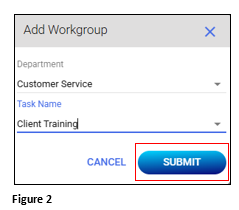
2. From the Add Workgroup box, use the dropdown arrows to select the appropriate choices. Click Submit and repeat as needed (Figure 2).
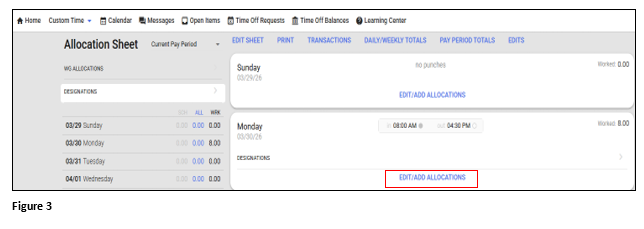
3. To allocate hours, find the date and click Edit/Add Allocations (Figure 3).
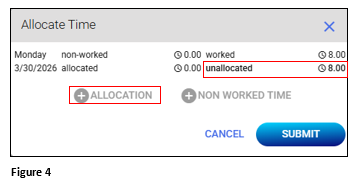
4. The number of unallocated hours will display in the upper right-hand corner. Click Allocation (Figure 4).
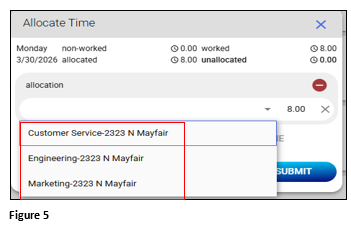
5. Click the dropdown arrow and the available workgroups will display (if the appropriate option is not available, please see Step 1). Select the appropriate workgroup (Figure 5).
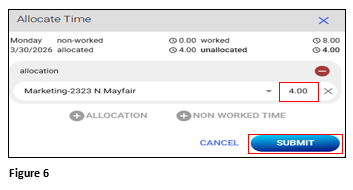
6. Add the number of hours allocated to the workgroup and click Submit (Figure 6).
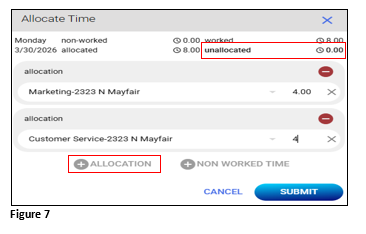
7. To add more workgroups from the available list, click +Allocation and repeat the steps until all the hours worked have been allocated for the day (Figure 7).
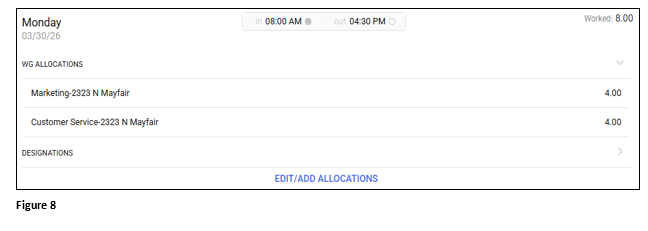
8. The Worked and Allocated hours will display on days that have been completed (Figure 8).